![hindiste-logo.png]](https://portal.fieldcentral.com/hs-fs/hubfs/HindSite/hindiste-logo.png?height=40&name=hindiste-logo.png)
Navigate to the settings page and select communications.
At the bottom left there are the settings for Confirmation & Reschedule Page Configuration.
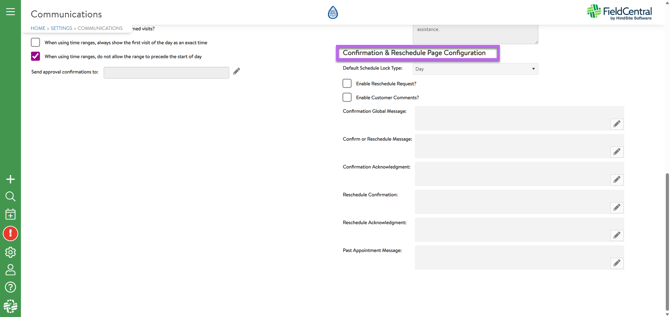
Schedule Lock Settings
The Default Schedule Lock Type dictates how much flexibility your dispatchers have once a customer confirms an appointment.
|
Lock Type |
Description |
Outcome |
|
None |
No Confirmation |
The appointment is scheduled but can be moved to different days or crews without a system alert. |
|
Day |
Date Restricted |
The visit can be moved to different times/crews on the same day, but cannot be moved to a new date without changing the confirmation to no. |
|
Time |
Full Lock |
The visit is anchored to that specific time slot. It cannot be moved on the schedule without changing the confirmation to no. |
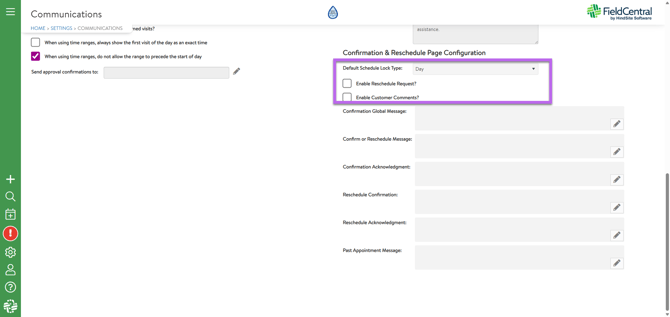
Customer Workflow Toggles
Use these switches to define what actions a customer is allowed to take on the portal.
- Enable Reschedule Request?
- Action: Adds a "Reschedule" button to the customer page.
- Result: Customers can initiate a move rather than just confirming.
- Enable Customer Comments?
- Action: Adds a text box to the Reschedule workflow.
- Result: Allows customers to provide a "Reschedule Reason" for your office to review.
Custom Communication Templates
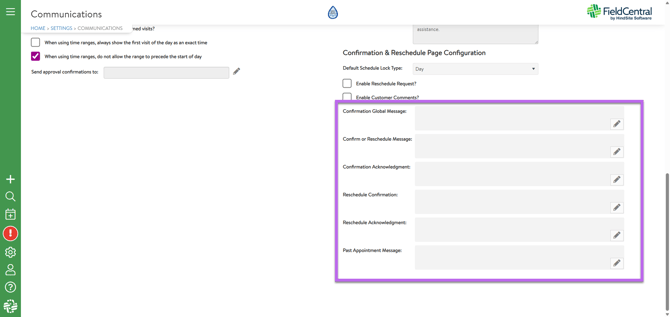
The default messages are listed below. These are customizable to fit your business needs. To customize each message select the pencil icon and use any communication variables you would like.
Default Messages
- Confirmation Global Message:
- "You are scheduled for Service with ~~V: Tech Name~~ on ~~V: DATETIME RANGE~~ ~~V: DATETIME DATE~~."
- Confirm or Reschedule Message:
- "To confirm or request a different appointment, choose one of the following:"
- Confirmation Acknowledgement
- "This appointment has been confirmed. Have any questions? You can reach us at ~~SW: Registered Phone~~ or ~~SW: Registered E-mail~~."
- Reschedule Confirmation (Prompt):
- "Tell us why you need to reschedule:"
- Reschedule Acknowledgement:
- "We have received your request to reschedule this appointment. We’ll reach out shortly with a new date and time! Didn’t mean to reschedule? You can reach us at ~~SW: Registered Phone~~ or ~~SW: Registered E-mail~~."
- Past Appointment:
- If a customer clicks a link for an appointment in the past, the customer will be given a ‘This appointment is no longer available / in the past’ notice.
NOTE* To utilize the reschedule feature the communication variable is ~~VisitAccept~~