![hindiste-logo.png]](https://portal.fieldcentral.com/hs-fs/hubfs/HindSite/hindiste-logo.png?height=40&name=hindiste-logo.png)
Running a service business means payments come in from a lot of places:
invoices, mobile payments, prepayments, links sent to customers, and more.
Until now, finding the full story behind a payment sometimes meant jumping between screens — or wondering, “Did that actually go through?”
The Payment History page in FieldCentral gives you a single, reliable place to see every payment, understand where it came from, and take action if something needs attention.
This page is designed to give you confidence — not just visibility.
When You’ll Use Payment History (Real-World Scenarios)
You’ll likely use Payment History when you need to:
- Confirm a customer’s payment before starting work
- Look up a payment tied to a specific property, visit, or invoice
- Understand how a payment was made (card, ACH, link, mobile app, etc.)
- Troubleshoot a QuickBooks sync issue
- Answer the question: “Did we get paid for this?”
If you’ve ever paused before responding to a customer or double-checked QuickBooks just to be sure — this page is for you.
How to Get There
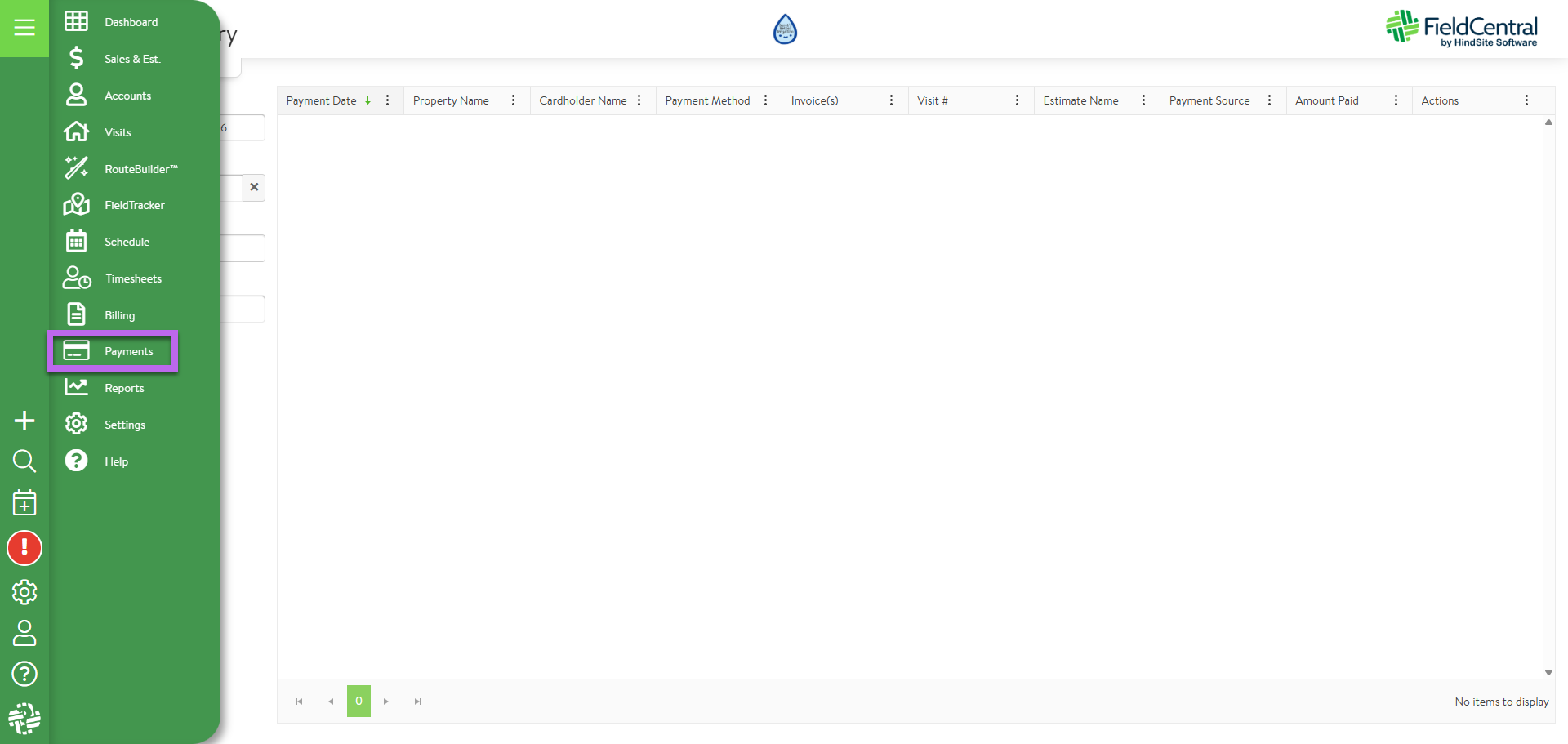
- Open the menu (☰) in FieldCentral
- Click Payments (located between Billing and Reports)
Note:
The Payments option appears only if your company has a FieldCentral Payment account.
You’ll land directly on the Payment History page.
What You’re Looking At
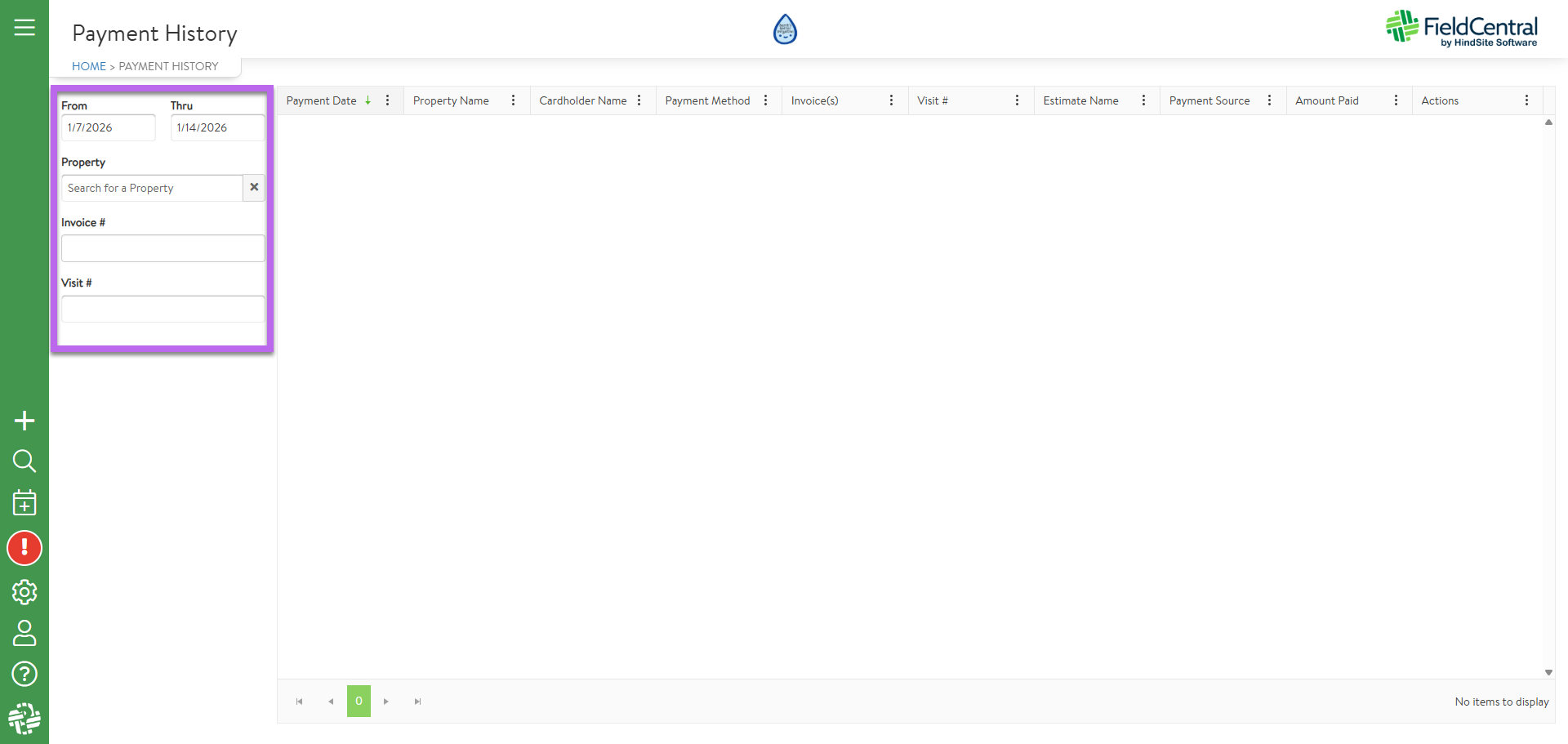
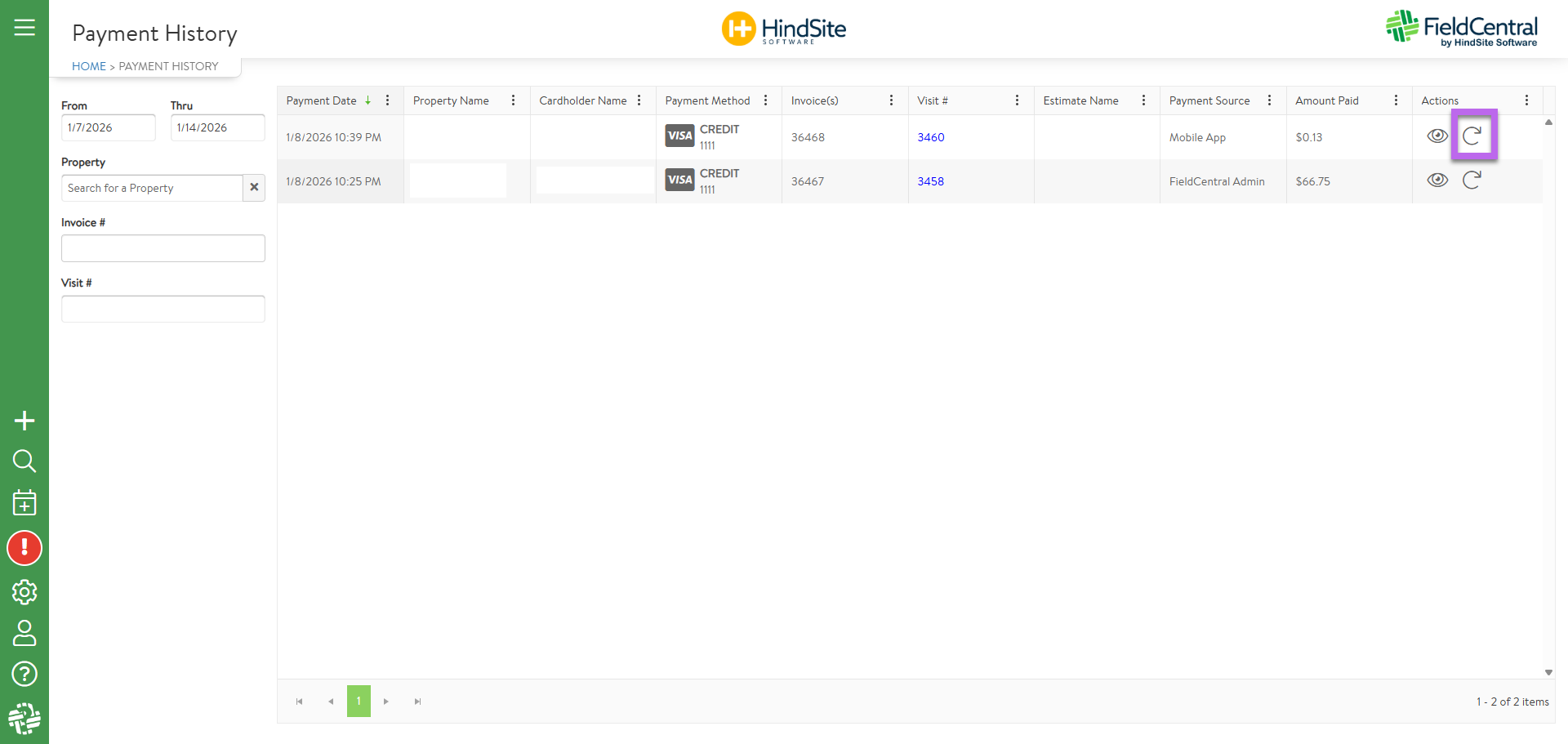
The Payment History page is made up of two main areas:
1. Filters (Left Side)
Think of these as your way to tell FieldCentral what story you’re looking for.
You can filter payments by:
- Payment date range (defaults to the last 7 days)
- Property
- Invoice #
- Visit #
- Payment source (how the customer paid)
- FieldCentral Admin (i.e. paid via schedule screen or accept estimate on behalf of a customer)
- Payment Link (i.e. paid via email/text link - even if sent via admin or mobile)
- Mobile App (i.e. completed & paid for visit in the app)
- Estimate Acceptance Page (i.e. paid on Customer Acceptance Page)
As you adjust filters, the results update automatically — nothing is final or locked in while you explore.
2. Results Grid (Main Area)
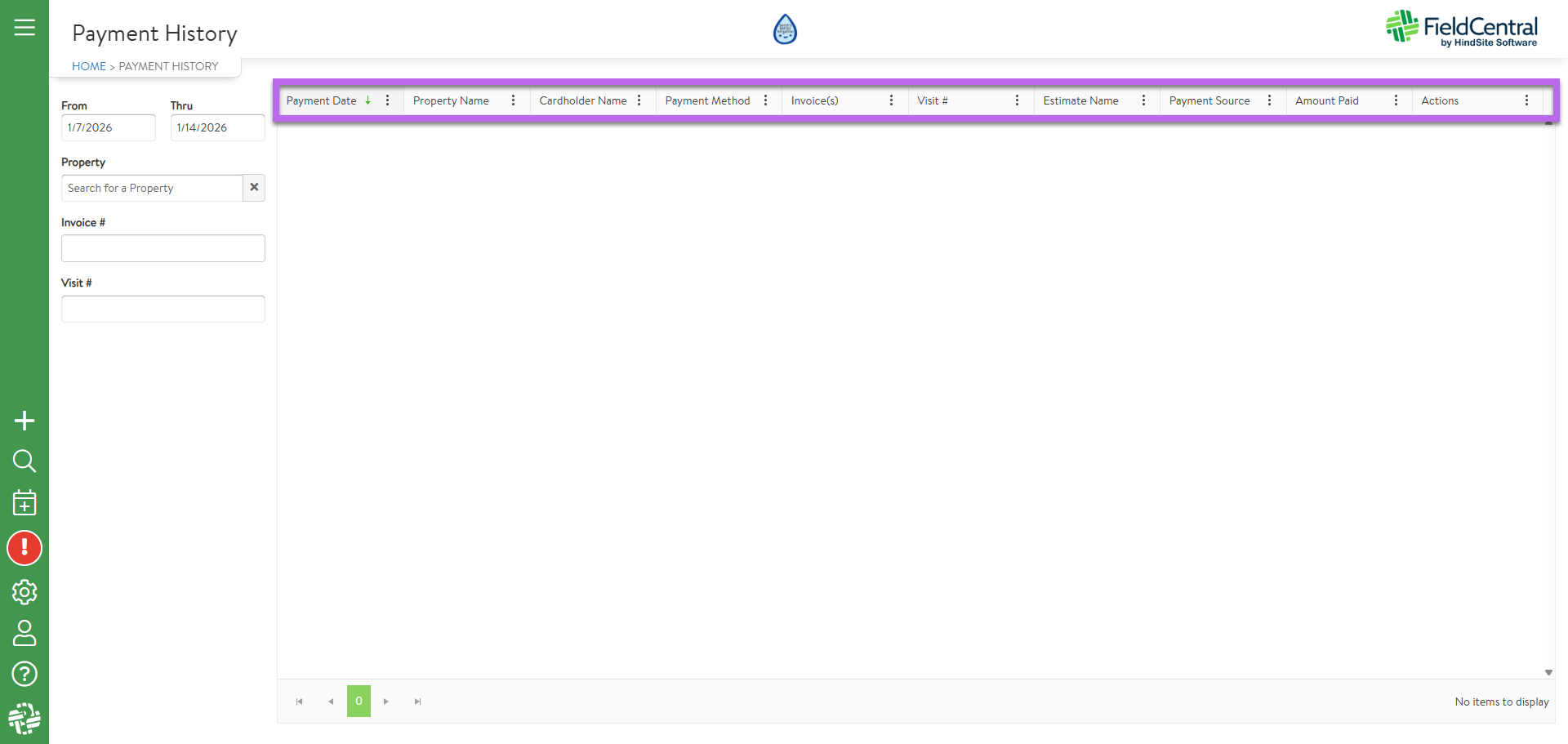
Each row represents one payment.
Even if a customer paid multiple invoices at once, you’ll see:
- One payment record
- All related invoices and visits clearly listed
This keeps the story intact and avoids duplicate confusion.
Understanding the Columns (What Each One Tells You)
Here’s how to read a payment row with confidence:
Payment Date
When the payment was made.
Property Name
Where the payment applies.
Contact / Cardholder Name
Who made the payment.
Payment Method
You’ll see:
- Card brand + last 4 digits
- OR bank icon + last 4 digits for ACH
This helps you quickly confirm how the payment was processed.
Invoice(s)
One or more invoice numbers tied to the payment.
Visit
Clickable links let you open the Visit Summary if you want more detail.
Estimate Name
Shown only when the payment came from an accepted estimate.
Clicking it opens the approved estimate in a new tab.
Payment Source
This tells you where the payment originated, such as:
- FieldCentral Admin
- Payment Link
- Mobile App
- Estimate Acceptance Page
This is especially helpful when reconciling or answering customer questions.
Amount Paid
The total payment amount.
Viewing Payment Details (When You Need the Full Story)
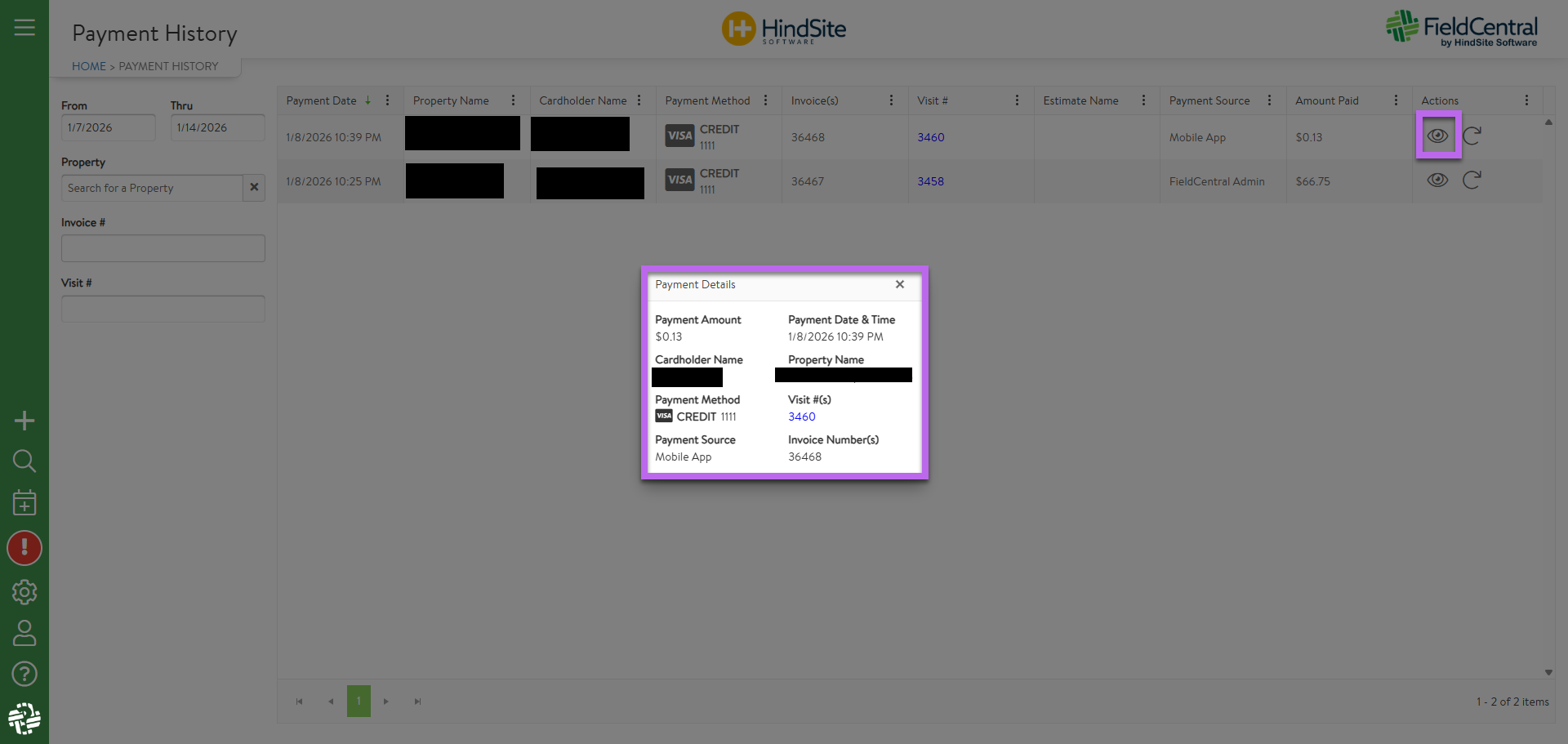
If you want to dig deeper into a payment:
- Click the eye icon on the payment row
- The Payment Details window opens
Here you’ll see:
- Payment amount and date/time
- Property and contact
- All related visits and invoices (with links)
- Payment method details (card or ACH)
- Payment source
This is your single source of truth for that transaction.
Resubmitting a Payment to QuickBooks (When Needed)
Sometimes a payment needs to be re-sent to QuickBooks — usually because of a sync issue, not because anything went wrong with the payment itself.
How to Resubmit
- Click the redo icon on the payment row
- Confirm the action in the prompt
You’ll see a message explaining exactly what will happen before anything is sent.
What Happens Next
- QuickBooks Online (QBO):
The payment is sent immediately. - QuickBooks Desktop (QBD):
The payment is queued and processed during the next import.
You’ll receive a clear success or error message so you know the outcome.
Important:
If a single payment is tied to multiple invoices, FieldCentral handles that correctly — one payment, attached to all related invoices.
Payment History is designed so you don’t have to guess or piece things together.
It:
- Shows the full payment story in one place
- Makes it clear how and where payments were made
- Gives you safe, intentional actions when something needs attention
- Helps you answer questions quickly — for customers and for your team
You’re not just seeing data, you’re understanding it.
If you can:
- Filter payments by date or property
- Open payment details
- Understand how a payment was made
- Confidently resubmit a payment when needed
You’re fully equipped to use Payment History on your own.