![hindiste-logo.png]](https://portal.fieldcentral.com/hs-fs/hubfs/HindSite/hindiste-logo.png?height=40&name=hindiste-logo.png)
Enable Prepayment on an Estimate
Before prepayment can be used, please get in touch with support@hindsitesoftware.com or call 888-752-5978 to have a rep validate your setup is configured as needed.
Once enabled, you’ll see a new option on:
- Estimates
- Estimate Templates
Enable Prepayment
When you toggle “Enable Prepayment” ON, you’ll be prompted to enter:
- Prepayment Line Item
- Prepayment Description
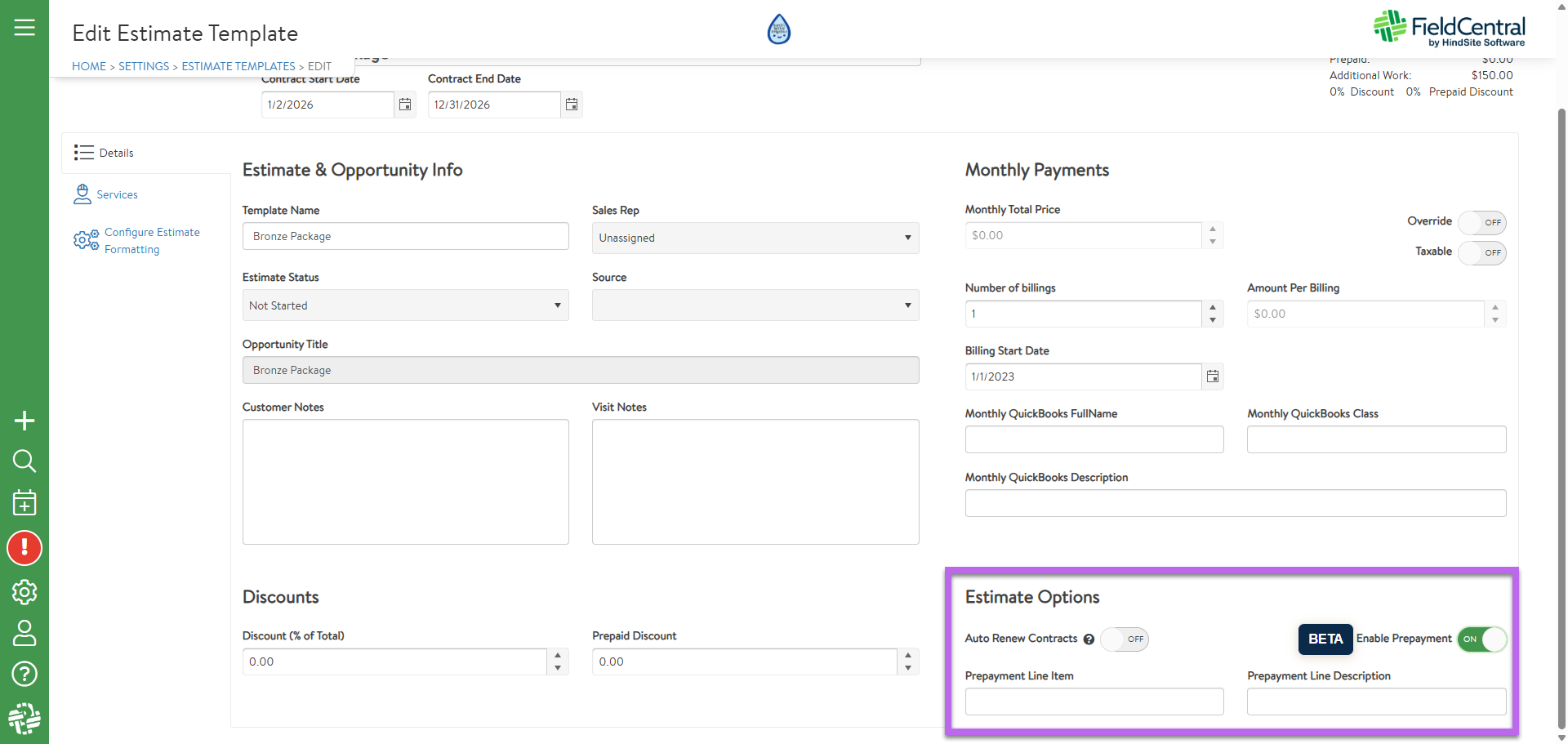
These values will:
- Appear on the payment record
- Be passed through to QuickBooks
Think of this as defining how this prepaid money should appear in your accounting system. In FieldCentral go to Settings - Accounting to set the prepaid account type.
Once this is set, the estimate is ready to accept payment.
Accepting a Prepaid Estimate
There are three ways a prepaid estimate can be accepted, depending on how payment is collected.
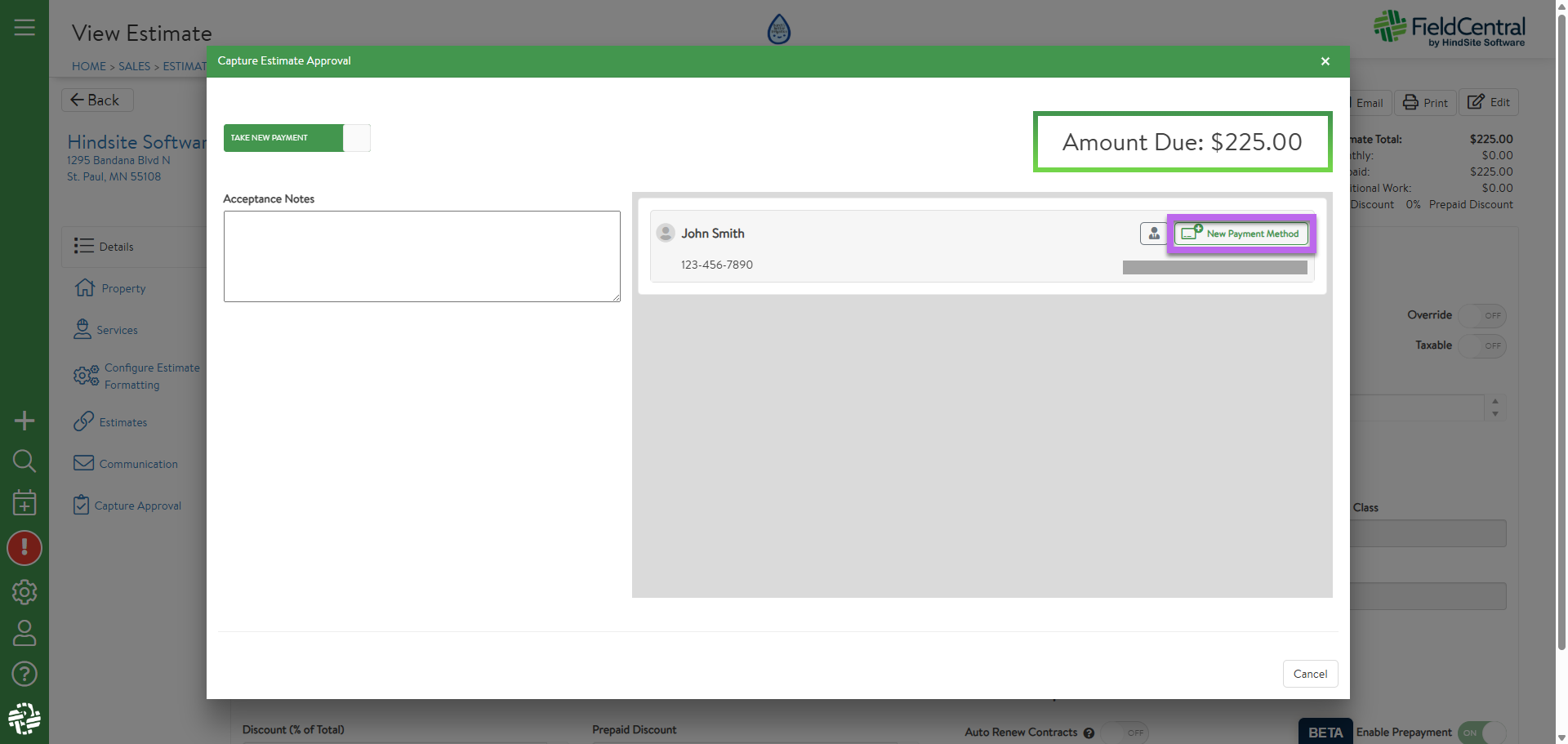
Option 1: Admin Acceptance — Taking Payment in FieldCentral
From the estimate, click Capture Approval and:
- Take payment immediately
- Choose from existing cards on file or enter a new card
- Choose where the receipt is sent (email or SMS)
- Optionally save the card to the customer’s wallet
- Enter Acceptance Notes (optional but recommended)
Once completed:
- Payment is processed securely
- The estimate is approved
- The estimate is converted into a Contract
- You’re ready to schedule work
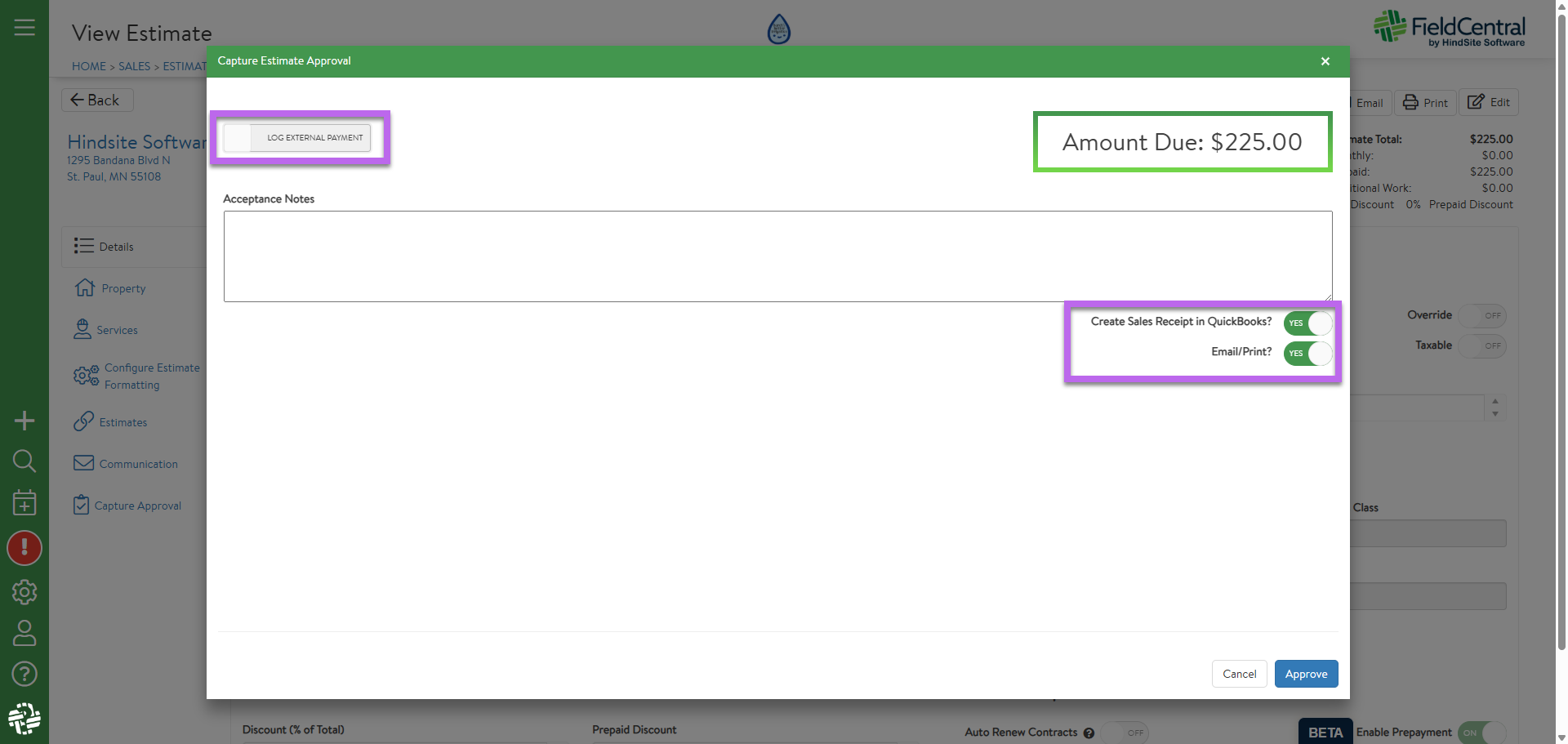
Option 2: Admin Acceptance — Logging an External Payment
If payment was collected outside of FieldCentral (cash, check, terminal, etc.), you can still keep everything clean and documented.
When capturing approval:
- Toggle Log External Payment
- Optionally create a paid QuickBooks entity:
- Invoice or
- Sales Receipt (depending on your setup)
If creating a QuickBooks entity, FieldCentral will:
- Respect property-level settings for emailing or printing
- Flag the transaction correctly for accounting
You can also add Acceptance Notes to explain how payment was taken.
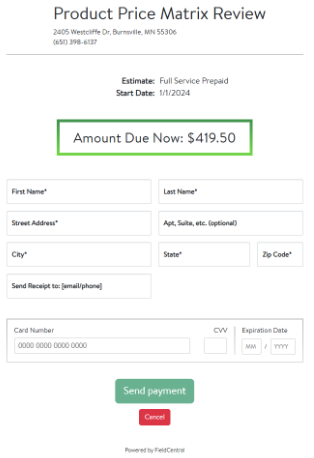
Option 3: Customer Acceptance Page (Customer Pays Directly)
This is the most common scenario.
If the estimate is sent to the customer for approval:
- The customer clicks Accept
- They are redirected to a secure Card Capture Form
- Payment is required to complete acceptance
Once payment is successful:
- The estimate is approved
- The contract is created
- Payment is recorded automatically
This is ideal for:
- Seasonal renewals
- Remote approvals
- Reducing admin involvement
Acceptance Notes & Tracking
To give you better visibility, FieldCentral also tracks who accepted the estimate and how.
You’ll see columns under Property > Sales & Estimating:
- Accepted By
- Admin email OR customer name (from Customer Acceptance Page)
- Acceptance Notes
- Admin notes OR “Customer Acceptance Page”
- Quick Links
- Estimate
- Contract
- Invoice
This makes it easy to audit approvals, answer questions, and stay organized.
What Happens After Payment (Accounting Overview)
You don’t need to manage this manually — but here’s what’s happening behind the scenes.
Prepayment Type: $0 Line Items → Creates Invoices
If your company uses $0 Line Items:
- An Invoice is sent to QuickBooks
- A Payment is attached automatically
- Line items follow standard FieldCentral billing logic
Prepayment Type: Liability Account → Creates Sales Receipts
If your company uses a Liability Account:
- A Sales Receipt is created
- Funds are placed into an Other Current Liability account in QuickBooks
- This supports true deferred revenue workflows
If the Prepayment Line Item isn’t set correctly, FieldCentral will fall back to invoice logic — but you may need to adjust the line item in QuickBooks manually.
Line Item & Description Logic (Handled for You)
FieldCentral determines line items using a fallback hierarchy:
- Trip Charge Full Name
- QuickBooks Full Name
- Service Name
Descriptions use:
- Trip Charge Description (if available)
- Otherwise, the Service Description
You don’t need to select these each time — they’re applied automatically.
Discounts & Taxes
Discounts
Prepayment reflects post-discount amounts.
Depending on your accounting system:
- QBO
- Enable Discounts under
Account & Settings > Sales > Sales Form Content - FieldCentral discounts will populate correctly
- Enable Discounts under
- QBD
- Create a Discount line item
- Map it in FieldCentral
- If using liability, the discount must point to the same liability account
Only one discount line per prepaid estimate is supported.
Taxes
- Tax is always included when collecting prepayment
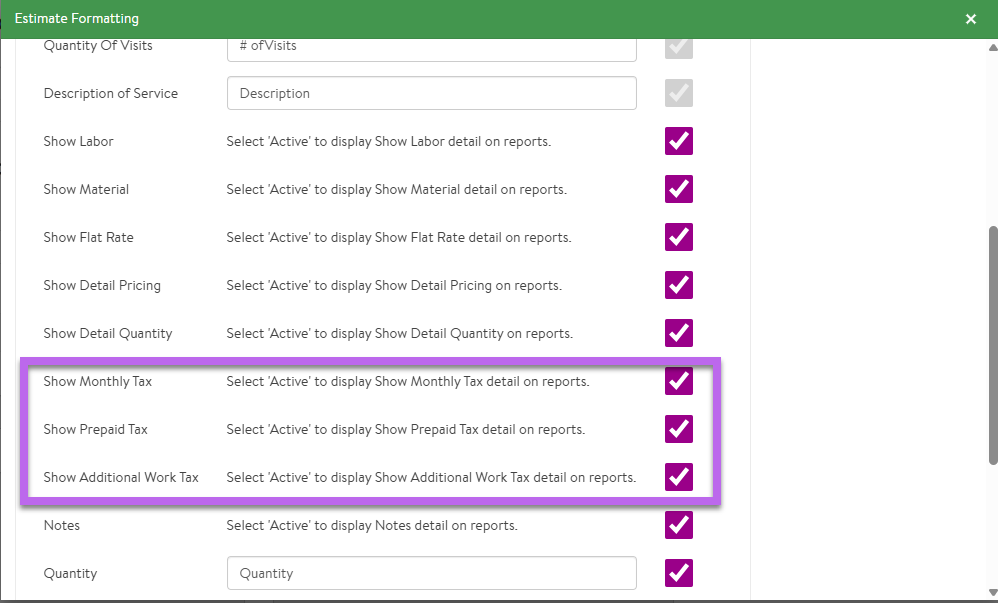
- Tax visibility on estimate PDFs is configurable
- In the configure estimate formatting the show taxes need to be checked off for those to be visible
This ensures prepaid amounts and future billing stay aligned.
Prepaid Estimates help you:
- Improve cash flow
- Reduce billing follow-up
- Start work with clarity
- Protect your revenue during busy seasons
Your customers benefit from:
- Clear approval steps
- Secure payment handling
- Immediate confirmation
Everyone knows where things stand — before work begins.
You’re Ready If You Can:
 Enable Prepayment on an estimate
 Capture approval with payment or log external payment Understand where Acceptance Notes live Know that FieldCentral handles the accounting logic
If you can do those things, you’re fully equipped to use Prepayment confidently.